Website Integration Overview
The Serene Creations platform integrates with your public website through two touch points: the contact form (which routes submissions to the Messages module in your portal) and the newsletter subscribe widget (which collects opt-in subscribers). Both run through Cloudflare Workers and require a small set of environment variables to activate.
Before you begin
- Your tenant is provisioned and your custom domain is connected. See Tenant Setup.
- You have access to your Cloudflare dashboard and the ability to set Worker secrets.
- A Resend account with a verified sending domain (SPF + DKIM records in DNS).
How it fits together
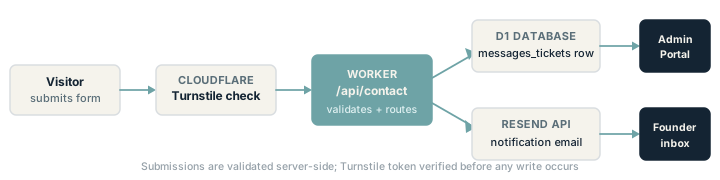
Both the contact form and newsletter widget follow the same pattern:
- The visitor’s browser submits a form.
- A Cloudflare Turnstile token is generated client-side and sent with the submission.
- The Worker verifies the Turnstile token server-side before processing anything.
- Valid submissions are stored (D1 for contact messages, KV for subscribers) and trigger email via Resend.
Contact form
The contact form at /contact posts to /api/contact. Submissions are validated, run through Turnstile, age-verified (13+), and stored as rows in the messages_tickets table in the shared D1 database.
What you get in the portal:
- Each submission appears in Messages → Tickets as a new open ticket.
- For
supportandgeneraltopic submissions, the submitter receives an auto-acknowledgement email. - You receive an internal notification email via Resend.
Required environment variables:
| Variable | Type | Purpose |
|---|---|---|
PUBLIC_TURNSTILE_SITE_KEY |
Build-time env (.env) |
Powers the Turnstile widget in the browser |
TURNSTILE_SECRET_KEY |
Worker secret | Server-side Turnstile token verification |
ADMIN_PORTAL_RESEND_API_KEY |
Worker secret | Sends notification + auto-ack emails via Resend |
To set Worker secrets (two options):
Option 1 — Wrangler CLI:
wrangler secret put TURNSTILE_SECRET_KEY
wrangler secret put ADMIN_PORTAL_RESEND_API_KEY
Option 2 — Cloudflare dashboard: Go to Workers & Pages → your-worker → Settings → Variables & Secrets, then add each secret under the Secrets section (not plain Variables, which would be visible in plain text).
If ADMIN_PORTAL_RESEND_API_KEY is not set, the Worker logs the submission to its console and returns a 200. This is a dev-only fallback — submissions reach the database but no emails are sent.
See Contact Form Setup in detail for Resend sender configuration and Turnstile site-key registration.
Newsletter subscribe widget
The newsletter opt-in on the homepage posts to /api/newsletter. Subscribers are stored under a SHA-256-hashed email key in the NEWSLETTER KV namespace. No plaintext email address is persisted as a KV key.
Double opt-in flow:
- Visitor enters their email and submits.
- The Worker stores a
pendingrecord under the hashed-email key. - A confirmation email is sent via Resend with a unique link.
- The visitor clicks the link, which calls
/api/newsletter/confirm. - The record is updated to
confirmed. Only confirmed subscribers receive newsletter sends.
Required environment variable:
| Variable | Type | Purpose |
|---|---|---|
ADMIN_PORTAL_RESEND_API_KEY |
Worker secret | Sends the double opt-in confirmation email |
The NEWSLETTER KV namespace binding is already configured in wrangler.jsonc. No additional namespace setup is required.
Unsubscribes are handled at /api/newsletter/unsubscribe. Every outbound newsletter includes a List-Unsubscribe header (RFC 8058) — mail clients that support one-click unsubscribe show an Unsubscribe button without requiring the subscriber to visit a page.
Verification checklist
Before going live, confirm:
PUBLIC_TURNSTILE_SITE_KEYis set in your.envfile and the site is rebuilt after setting it.TURNSTILE_SECRET_KEYandADMIN_PORTAL_RESEND_API_KEYare set as Worker secrets (not plain env vars).- Your Resend sending domain has both SPF and DKIM DNS records verified in the Resend dashboard.
- A test contact form submission appears in Messages → Tickets in the portal.
- A test newsletter sign-up sends a confirmation email and the link marks the subscriber as confirmed.
Next steps
- Contact form setup in detail — Resend sender config, Turnstile registration, and bot-protection tuning.
- Newsletter management — draft, schedule, and send newsletters to your confirmed subscriber list.