Contact Form Setup
This article covers the full configuration path for the /api/contact endpoint — from registering a Turnstile widget to verifying that submissions land in your portal. If you want an overview first, read Website Integration.
How /api/contact works
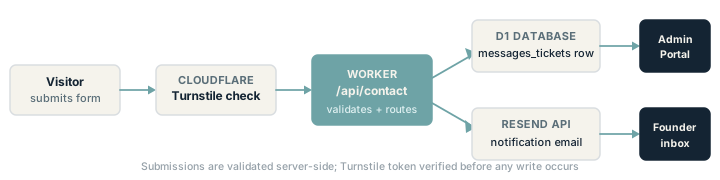
When a visitor submits the contact form:
- The browser generates a Turnstile token and includes it in the POST body alongside the form fields.
- The Worker receives the request and verifies the Turnstile token with Cloudflare’s server-side API. If verification fails, the Worker returns 400 and stops.
- The Worker validates all form fields (name, email, message, topic, age attestation). Invalid submissions return 422.
- If a rate-limit rule is exceeded (5 submissions per 15 minutes or 30 per day per IP), the Worker returns 429.
- A valid submission is written to the
messages_ticketstable in the shared D1 database. - If
ADMIN_PORTAL_RESEND_API_KEYis set, the Worker sends:- A notification email to the studio (internal alert).
- An auto-acknowledgement email to the submitter for
supportandgeneraltopics.
Step 1: Register a Turnstile site
Turnstile requires a site key (used in the browser) and a secret key (verified server-side). Both are tied to the domain your site runs on.
- Log in to the Cloudflare dashboard and open Turnstile in the left sidebar.
- Select Add site.
- Enter a name (e.g. “serenecreations.io contact form”) and the domain (
serenecreations.io). - Choose Managed as the widget type — this provides invisible or minimal-challenge protection without user-visible puzzle boxes.
- Select Create.
- Copy the Site key and the Secret key.
Add the site key to your project’s .env file:
PUBLIC_TURNSTILE_SITE_KEY=0x4AAAAAAA...Rebuild and deploy the site after adding the site key — it is baked into the client-side widget at build time.
Step 2: Set Worker secrets
The secret key and Resend API key must be set as Worker secrets — not plain environment variables, which are visible in the Cloudflare dashboard in plain text.
# Turnstile server-side verification
wrangler secret put TURNSTILE_SECRET_KEY
# Paste the secret key from step 1 when prompted

# Resend sending
wrangler secret put ADMIN_PORTAL_RESEND_API_KEY
# Paste your Resend API key when prompted
Alternatively, set them through the Cloudflare dashboard: Workers & Pages → your-worker → Settings → Variables & Secrets → Add → Secret.
Step 3: Verify your Resend sending domain
Resend requires SPF and DKIM DNS records to be verified before it will send from your domain.
- Log in to resend.com and open Domains.
- Select Add domain and enter the domain you want to send from (e.g.
serenecreations.io). - Resend shows two DNS records to add at your registrar:
- A TXT record for SPF.
- A CNAME record for DKIM.
- Add both records at your registrar (same process as custom domain setup).
- Return to Resend and select Verify DNS records. Verification usually passes within a few minutes.
Once the domain is verified, the from address in Worker emails (e.g. hello@serenecreations.io) will pass SPF and DKIM checks and be less likely to land in spam.
Step 4: Test the integration
With secrets set and the domain verified, submit a test message through the contact form on your site:
- Open your site’s
/contactpage. - Fill in all required fields, check the age attestation, and submit.
- Confirm the response is a success message (no error shown).
- In the portal, open Messages → Tickets. The submission should appear as a new open ticket within seconds.
- Check the notification email address — you should receive an internal alert from Resend.
If a step fails, check the Worker’s real-time log in the Cloudflare dashboard: Workers & Pages → your-worker → Logs. Errors are logged with a descriptive message.
Form fields and validation
| Field | Required | Validation |
|---|---|---|
| Name | Yes | 1–100 characters |
| Yes | Valid email format | |
| Topic | Yes | One of: support, general, feedback, other |
| Message | Yes | 10–5000 characters |
| Age attestation | Yes | Must be checked; submitter confirms they are 13 or older |
| Turnstile token | Yes | Generated client-side; verified server-side |
Submissions that fail validation return HTTP 422 with a JSON error body. The form UI surfaces these errors inline.
Rate limiting
The Worker enforces rate limits per IP:
- 5 submissions per 15 minutes
- 30 submissions per day
Requests that exceed these limits receive HTTP 429. The limits are designed to block automated form spam while allowing legitimate use.
Next steps
- Newsletter subscribe widget — configure the newsletter opt-in.
- Newsletter management — send newsletters to confirmed subscribers.